Most people don’t think about backups until something goes wrong. A hard drive fails, a laptop gets damaged, an important folder is accidentally deleted, or malware makes files inaccessible.
By that point, recovering the data can be difficult, expensive, or sometimes impossible.
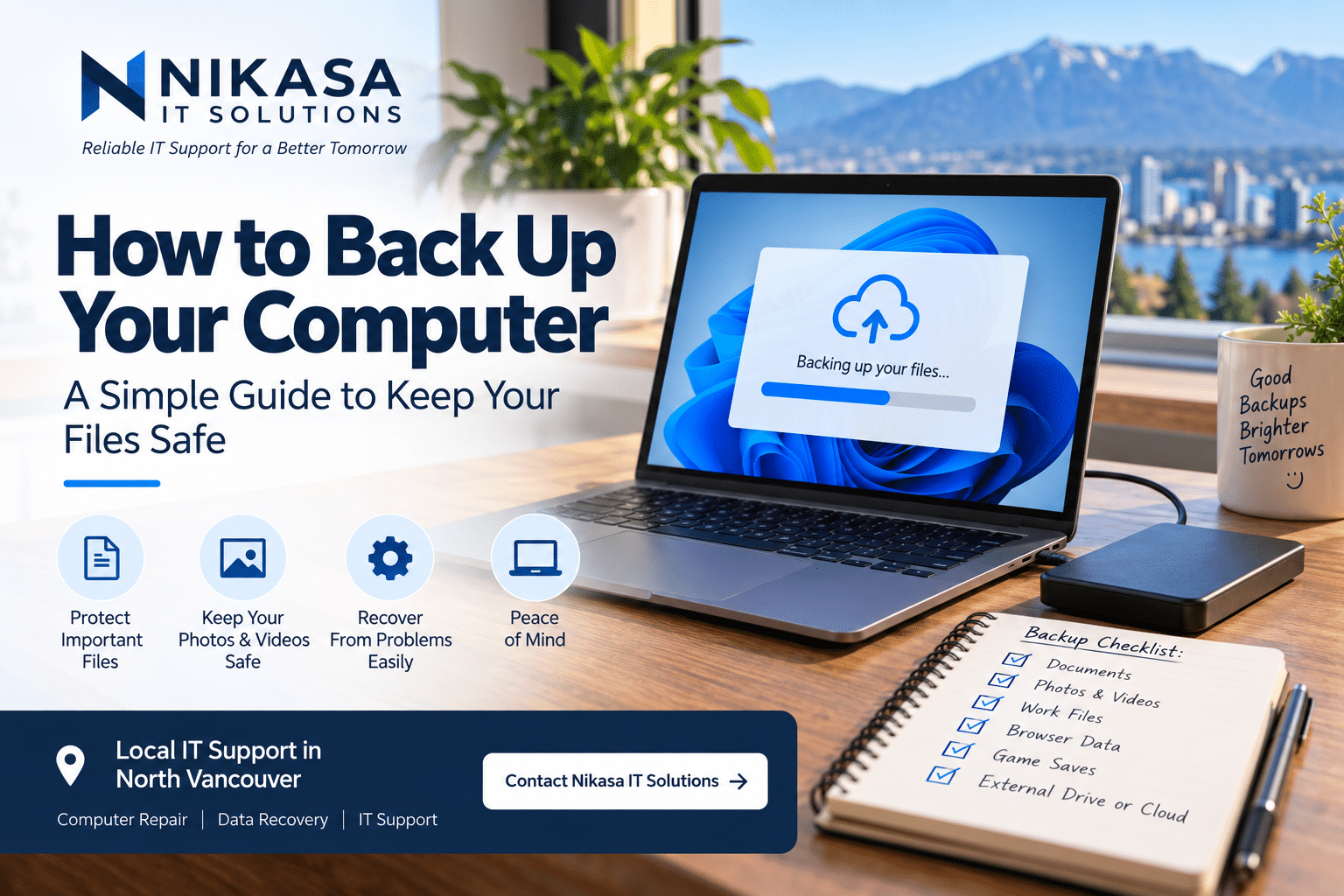
The good news is that backing up your computer does not have to be complicated. With the right setup, much of the process can happen automatically in the background.
In this guide, we’ll explain what a backup actually is, what you should back up, and a few practical ways to protect your files.
What Is a Computer Backup?
A backup is simply an additional copy of important data stored somewhere other than the original location.
For example, if your photos exist only on your laptop, you have one copy. If the laptop’s storage drive fails, those photos could be lost.
If those same photos are also stored on an external drive or a cloud backup service, you have another copy available if something happens to the computer.
Moving a file from your computer to an external drive is not necessarily a backup. If the original is deleted, you may still have only one copy. A backup means keeping another copy of the data.
What Files Should You Back Up?
You do not necessarily need to back up every file on your computer. Start with anything that would be difficult or impossible to replace.
This commonly includes:
- Family photos and videos
- Documents and spreadsheets
- School or university work
- Business files
- Accounting and financial records
- Project files
- Important downloads
- Saved creative work
- Game saves that are not already synchronized online
Think about it this way: if your computer disappeared tomorrow, which files would you immediately worry about?
Those files should be backed up.
Option 1: Back Up to an External Drive
One of the simplest backup methods is using an external USB hard drive or SSD.
Connect the drive to your computer and copy your important folders to it. Windows also includes backup features that can help automate parts of this process.
Advantages of an External Drive
- No monthly subscription is required
- Large amounts of storage are relatively affordable
- Restoring large files can be fast
- Your files remain physically available to you
But There Is One Problem
If the external drive remains permanently connected to the computer, it can potentially be affected by some of the same problems as the computer itself.
Theft, physical damage, electrical problems, or certain types of malware could affect both devices.
If you use an external drive for occasional manual backups, disconnect it after the backup is complete and store it somewhere safe.
Option 2: Use Cloud Storage
Cloud storage is another convenient way to protect important files.
Services such as Microsoft OneDrive, Google Drive, and Apple iCloud can synchronize selected files between your computer and online storage.
This can be especially convenient for documents and photos because your files can also be accessed from other devices.
Synchronization and Backup Are Not Exactly the Same
This distinction is important.
A synchronization service keeps files synchronized between devices. If you delete a synchronized file, that deletion may also synchronize to the cloud.
Many cloud services provide recycle bins, file history, or recovery features, but you should understand how your particular service handles deleted or changed files.
Option 3: Use Both Local and Cloud Backups
For important data, using more than one backup method provides much better protection.
You might keep:
- Your original files on your computer
- A backup on an external drive
- Another copy stored online
This means a single hardware failure or accident is less likely to destroy every copy of your data.
The 3-2-1 Backup Rule
A commonly used backup strategy is called the 3-2-1 rule.
3 — Keep three copies of your important data.
2 — Store those copies on at least two types of storage.
1 — Keep at least one copy separate from the others, ideally off-site or otherwise isolated.
Home users do not necessarily need an elaborate enterprise backup system, but the principle is useful: don’t allow one accident to destroy every copy of something important.
Don’t Forget About Your Photos
Phones now contain some of our most valuable personal data.
Years of family photos and videos can exist on a single device without the owner realizing they are not properly backed up.
Check whether your phone is actually synchronizing photos to the cloud rather than simply assuming it is.
Also verify that you still have access to the account being used for the backup.
Gamers Should Check Their Save Files Too
Many modern games support cloud saves through their gaming platform, but not every game handles saves in the same way.
If you have hundreds of hours invested in a game, check whether its save data is synchronized online before reinstalling Windows, replacing a drive, or moving to another computer.
Your games themselves can usually be downloaded again. Your personal screenshots, custom configurations, mods, project files, and some save files may be much harder to replace.
Small Businesses Need More Than “I Think It’s Backed Up”
Backups become even more important when a computer contains business information.
Customer documents, accounting information, databases, invoices, email archives, and shared folders may be essential to daily operations.
A backup system should not only exist—it should also be checked periodically.
A backup that has silently stopped working for six months is not much help when the original data disappears.
A Backup Isn’t Useful Until You Can Restore It
One of the most overlooked parts of backing up data is testing whether the backup can actually be restored.
Occasionally open a few files from your backup and verify that they are readable.
Businesses should go further and periodically confirm that important systems and files can be recovered as expected.
Discovering that a backup is incomplete or corrupted after the original drive has failed is too late.
How Often Should You Back Up Your Computer?
The right schedule depends on how frequently your files change.
If you use your computer occasionally and mostly store personal photos and documents, a regular weekly backup may be sufficient.
If you work on important files every day, waiting an entire week could mean losing several days of work.
For important business data, automated daily backups—or even more frequent protection for critical systems—may be appropriate.
Ask yourself one simple question:
“How much work or data could I afford to lose?”
Your backup frequency should reflect the answer.
Start With the Files You Can’t Replace
You don’t need to build the perfect backup system overnight.
Start by identifying your most important files and making sure at least one additional copy exists somewhere safe.
From there, you can improve the setup with automatic backups, cloud storage, an external drive, or a combination of methods.
Need Help Protecting or Recovering Your Data?
If you’re unsure whether your computer is properly backed up, need help moving files to a new computer, or have already experienced data loss, Nikasa IT Solutions can help.
We provide computer support, data recovery assistance, storage upgrades, computer repair, and IT support for home users and small businesses in North Vancouver.
We can help you choose a practical backup approach based on what you’re protecting instead of making the setup more complicated than it needs to be.
Are Your Important Files Properly Backed Up?
Nikasa IT Solutions provides local computer support, data recovery assistance, upgrades, and IT services in North Vancouver.
Contact Nikasa IT Solutions